Getting started
• 4 min read
• TikTask Team
⚡ Create your first TikTask in 30 seconds
Start with one simple test task: choose an action, write a short message, pick a channel and recipient, set the time, and save.
setup
beginner
scheduling
Your first TikTask should take about a minute. Start with one simple test so you understand the flow once.
After that, you can reuse the same logic for WhatsApp, Telegram, Gmail, Status posts, and recurring routines.
ℹ️
Quick answer
To create your first TikTask, tap Create, choose an action, write a short message, pick a channel and one recipient, set a time a few minutes ahead, and save.
What a TikTask includes
- An action, like Send Message or Send SMS
- Your content, such as a text message or attachment
- One or more channels, like WhatsApp or Telegram
- The right recipients or destination
- A schedule that tells TikTask when to run
Step-by-step
1
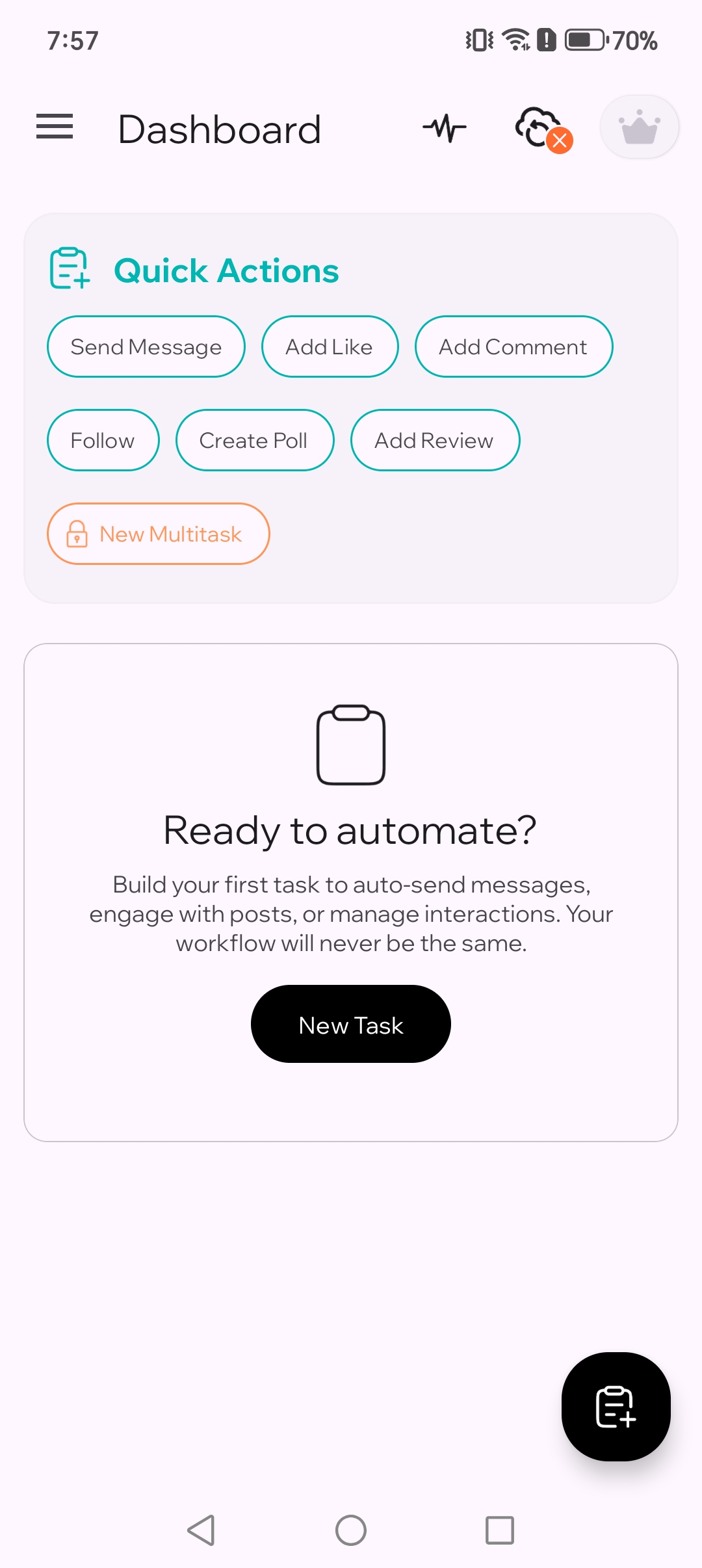
Tap Create
Open TikTask and tap Create. Every new task starts here.
2
Choose an action
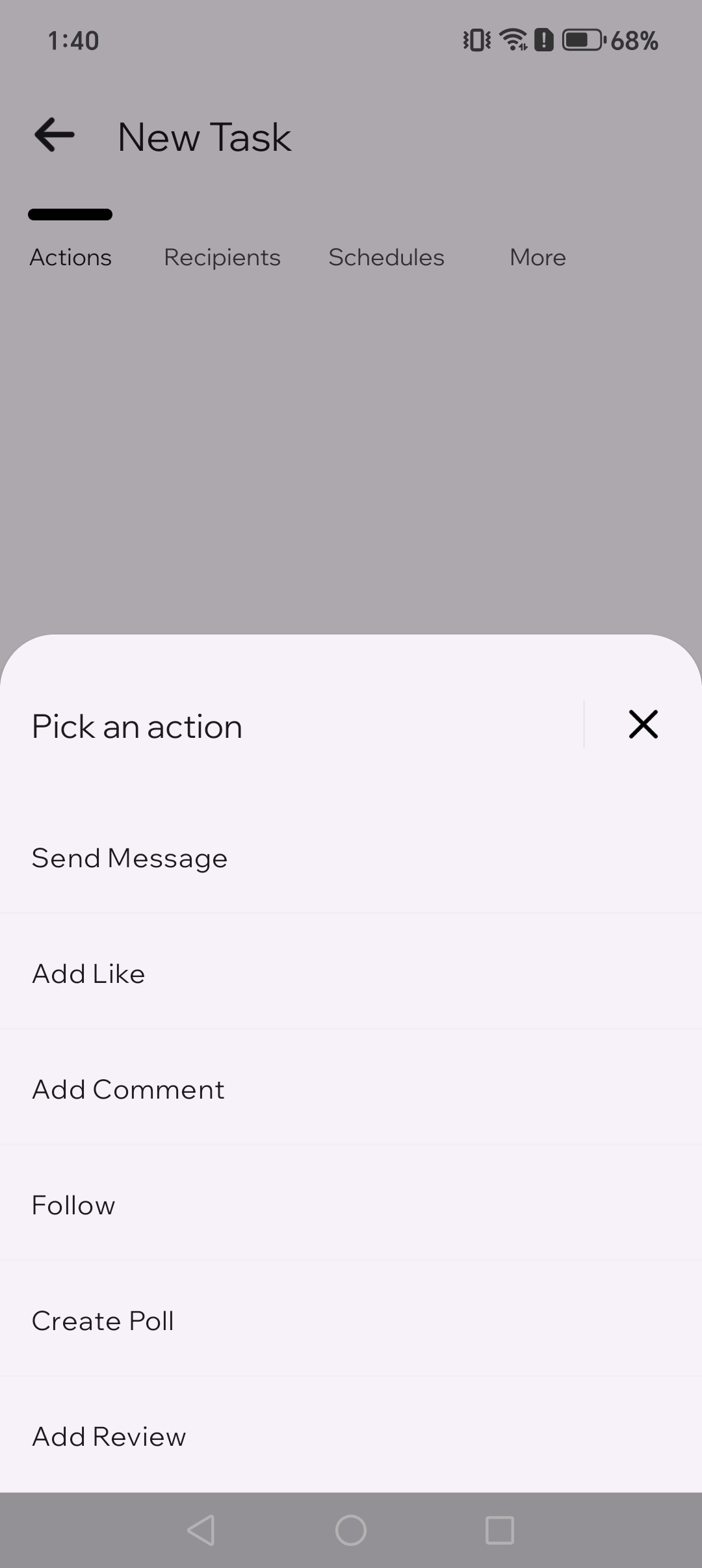
For your first test, choose Send Message. Actions tell TikTask what you want it to do.
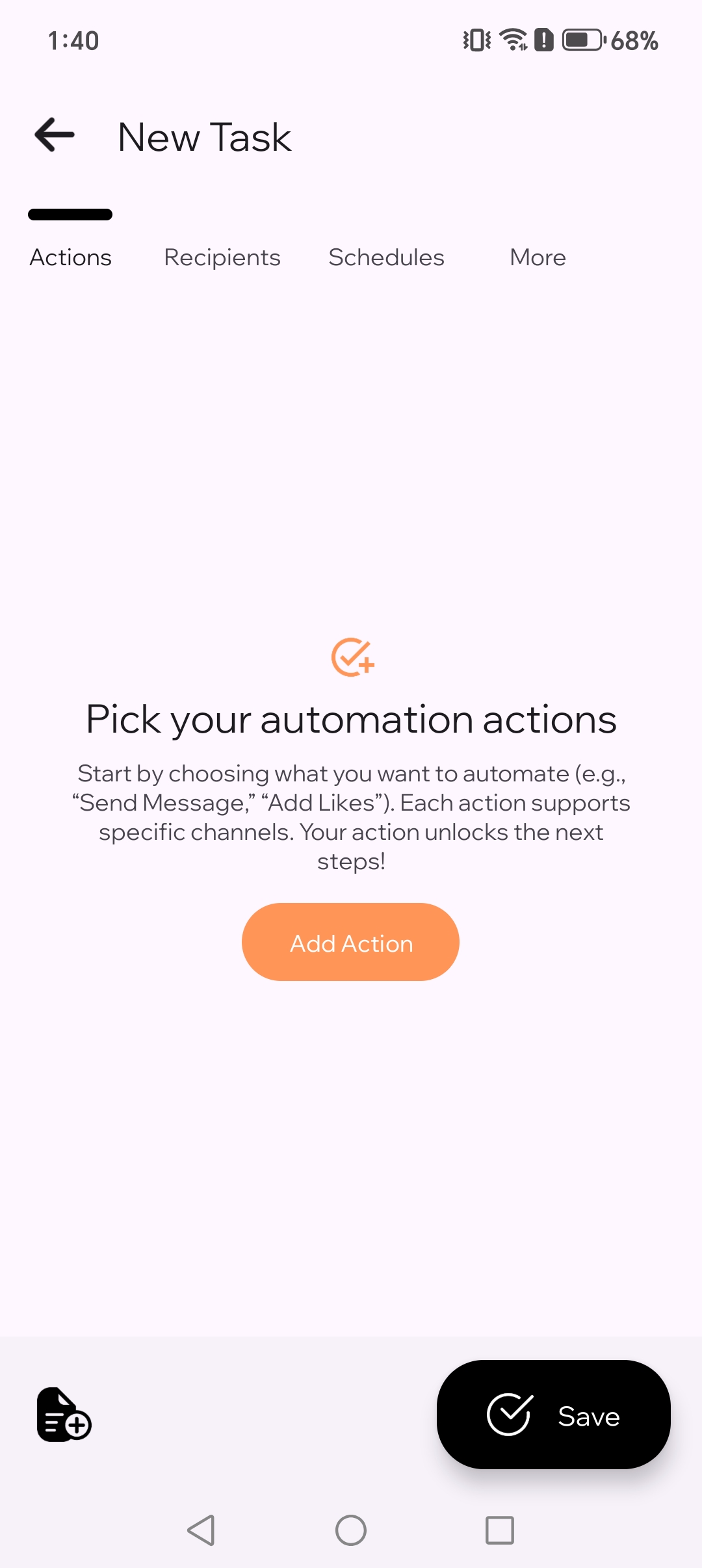
2.1. Pick your automation action.
2.2. Choose "send message" action.
3
Write your message
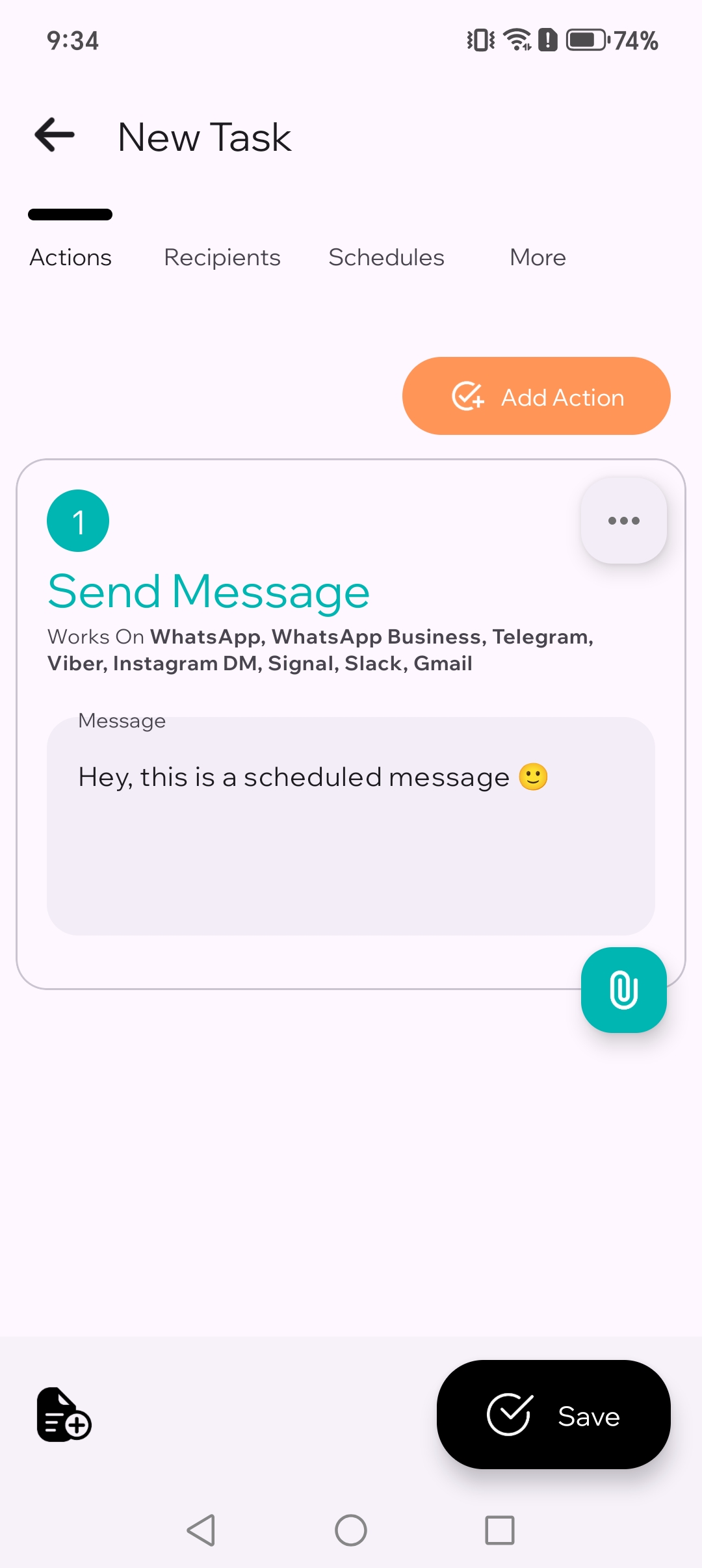
Type a short test message like “Hey, this is a scheduled message 🙂”. Keep the first test simple.
4
Choose a channel
Pick WhatsApp for the first test. A channel is the app where TikTask will run the action.
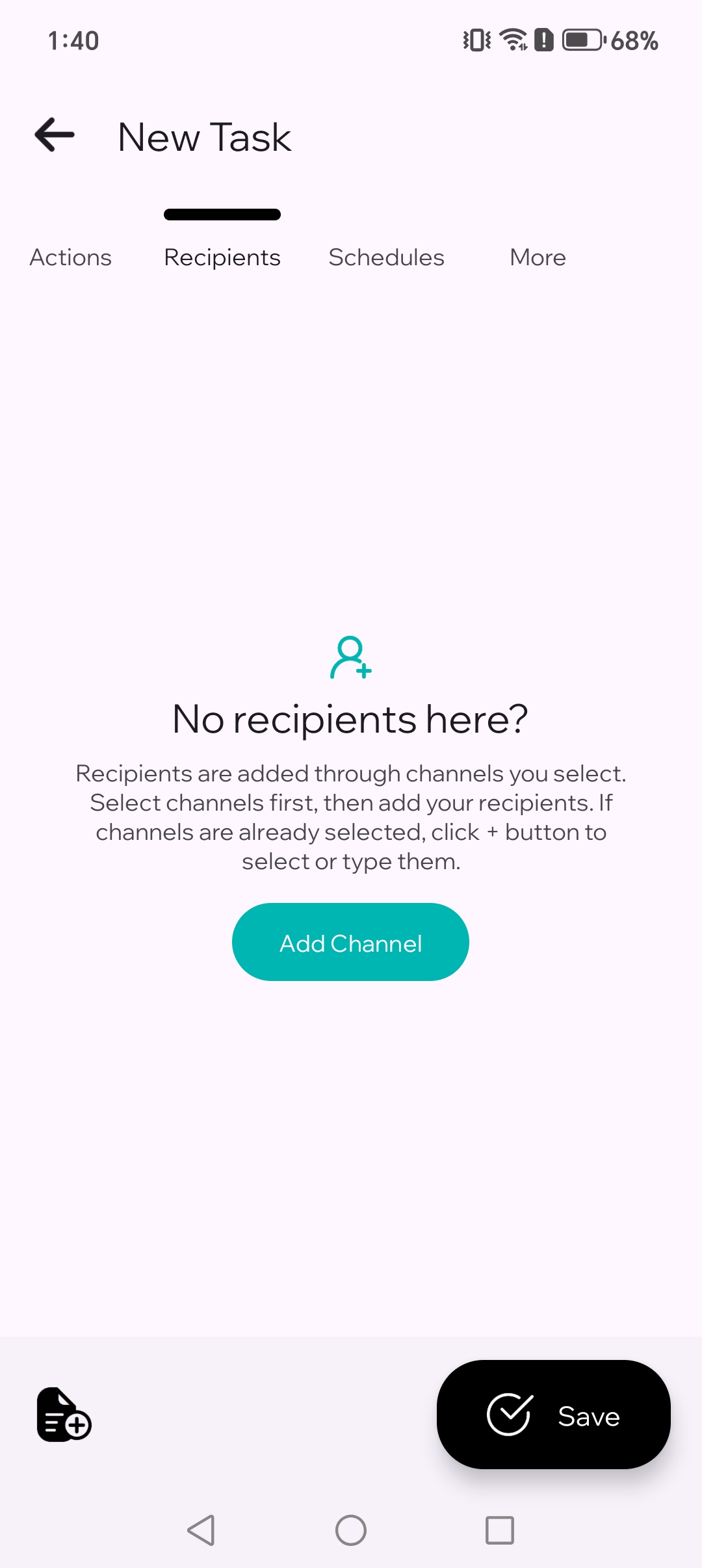
4.1. Choose the app you want to send through.
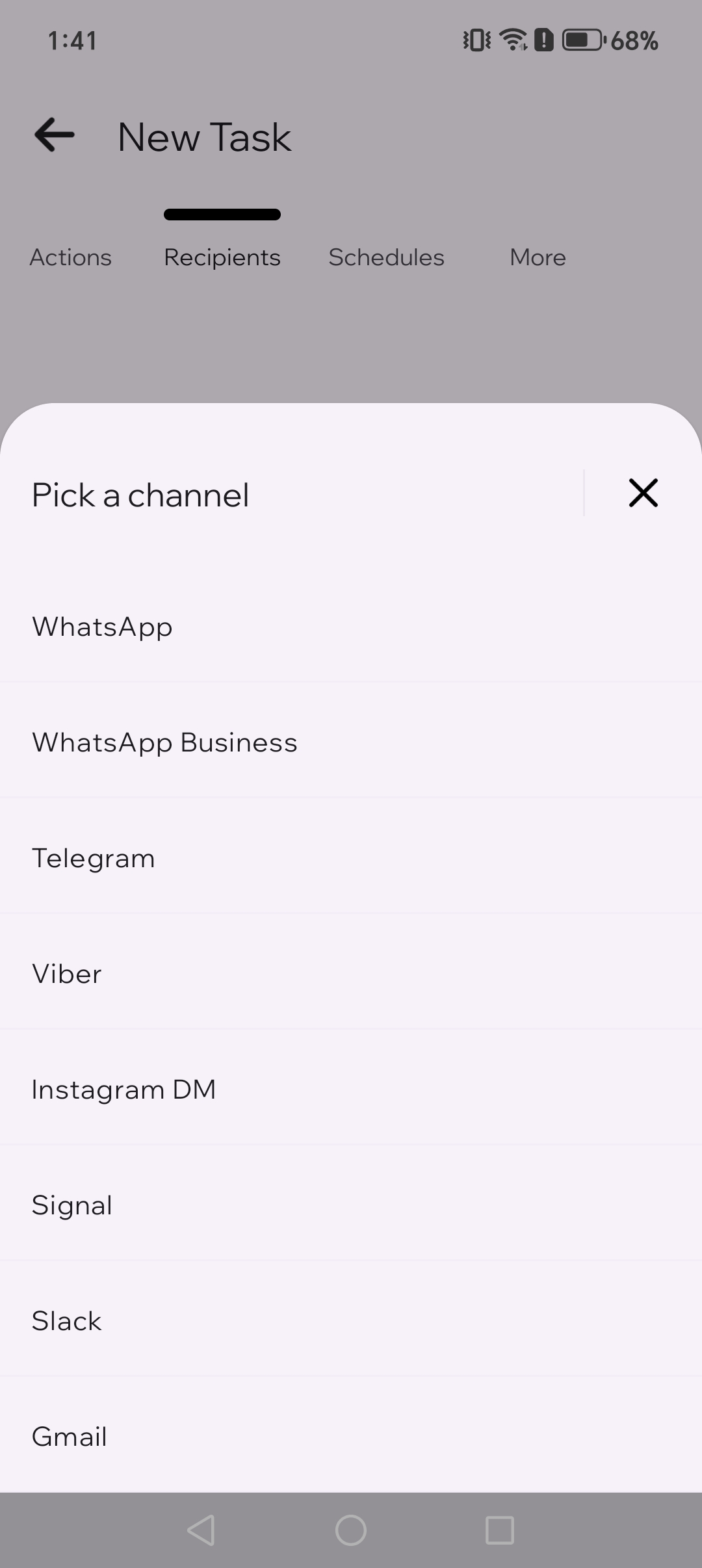
4.2. Pick whatsApp for your first test.
5
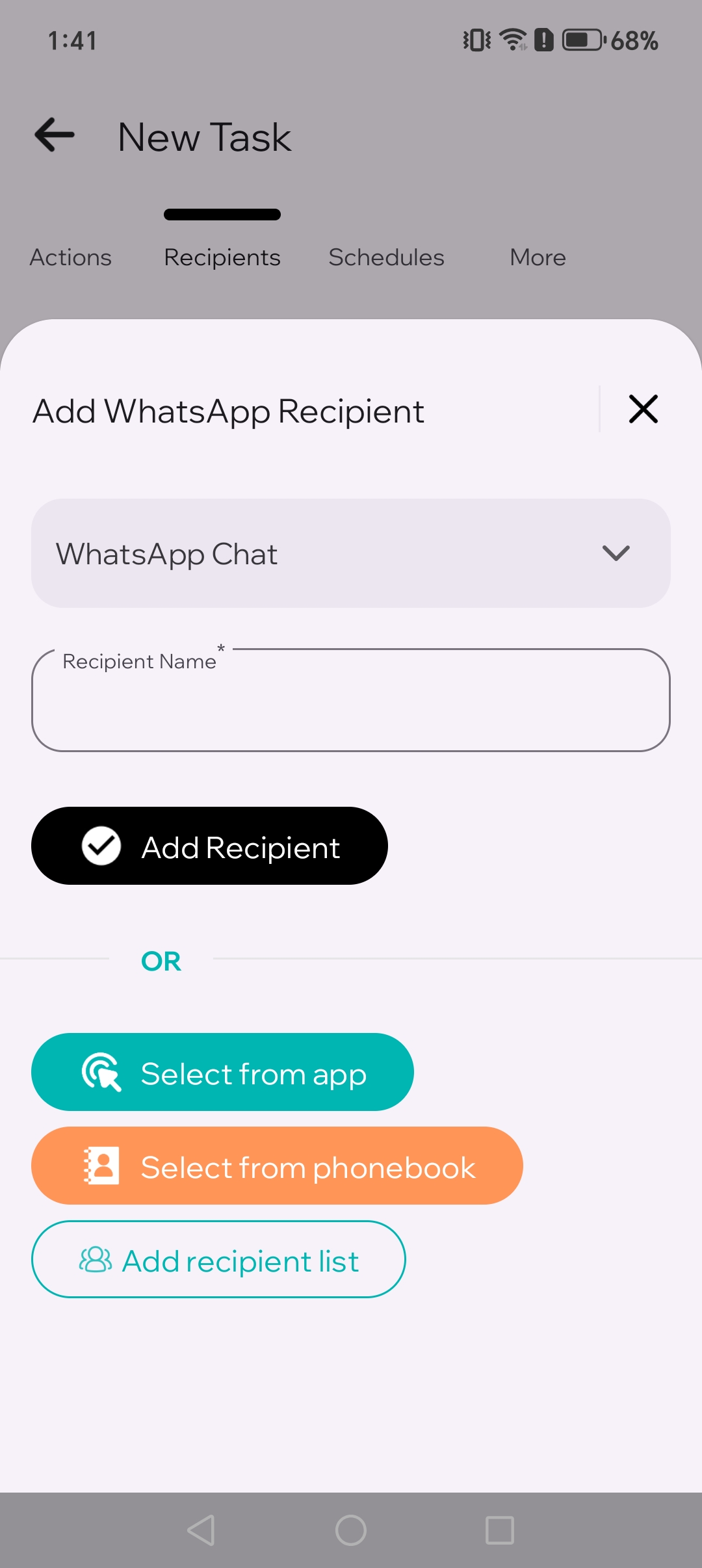
Select recipients
Choose one chat, contact, or group. Keeping it to one recipient makes the first test easier to verify.
6
Set the time
Choose a time 2–3 minutes from now so you can test quickly.
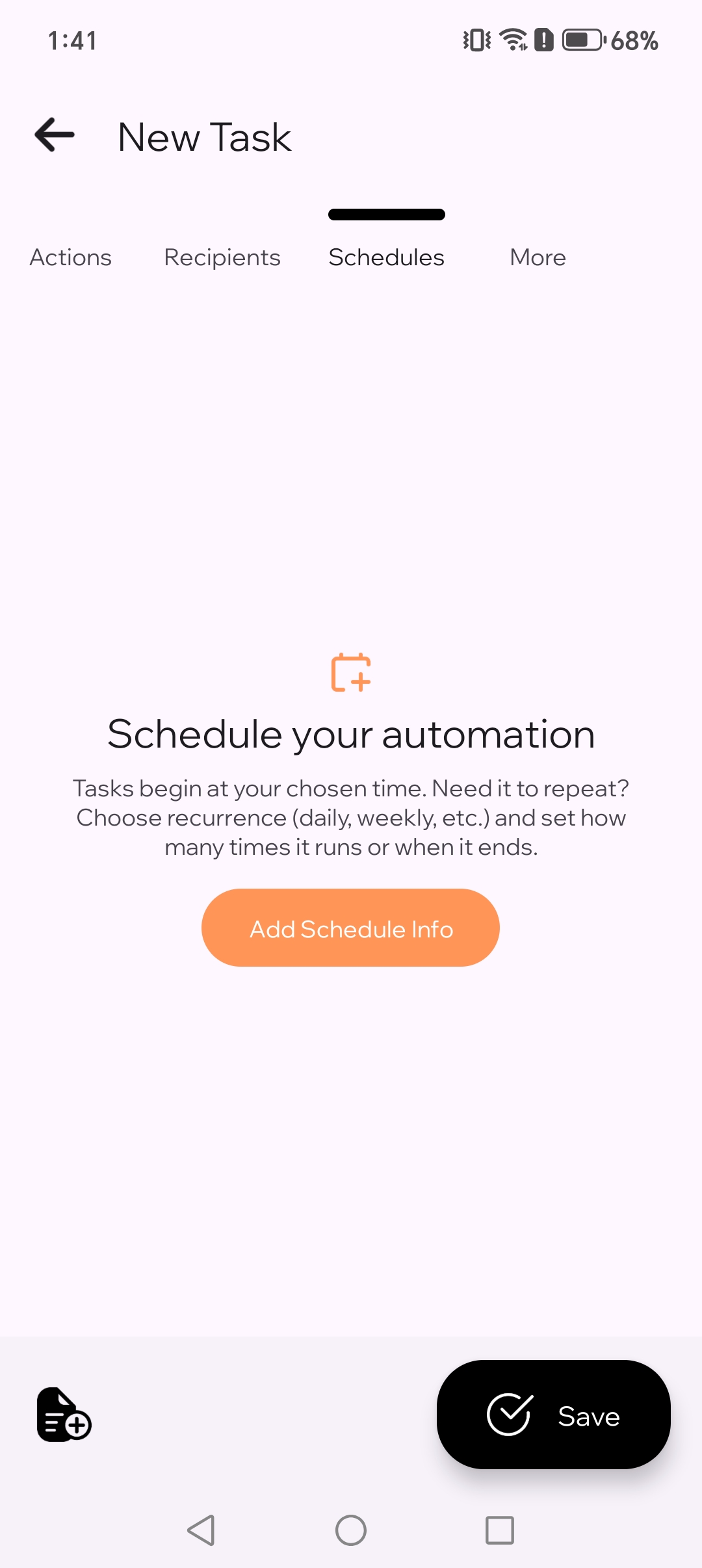
6.1. Add a schedule info for your task.
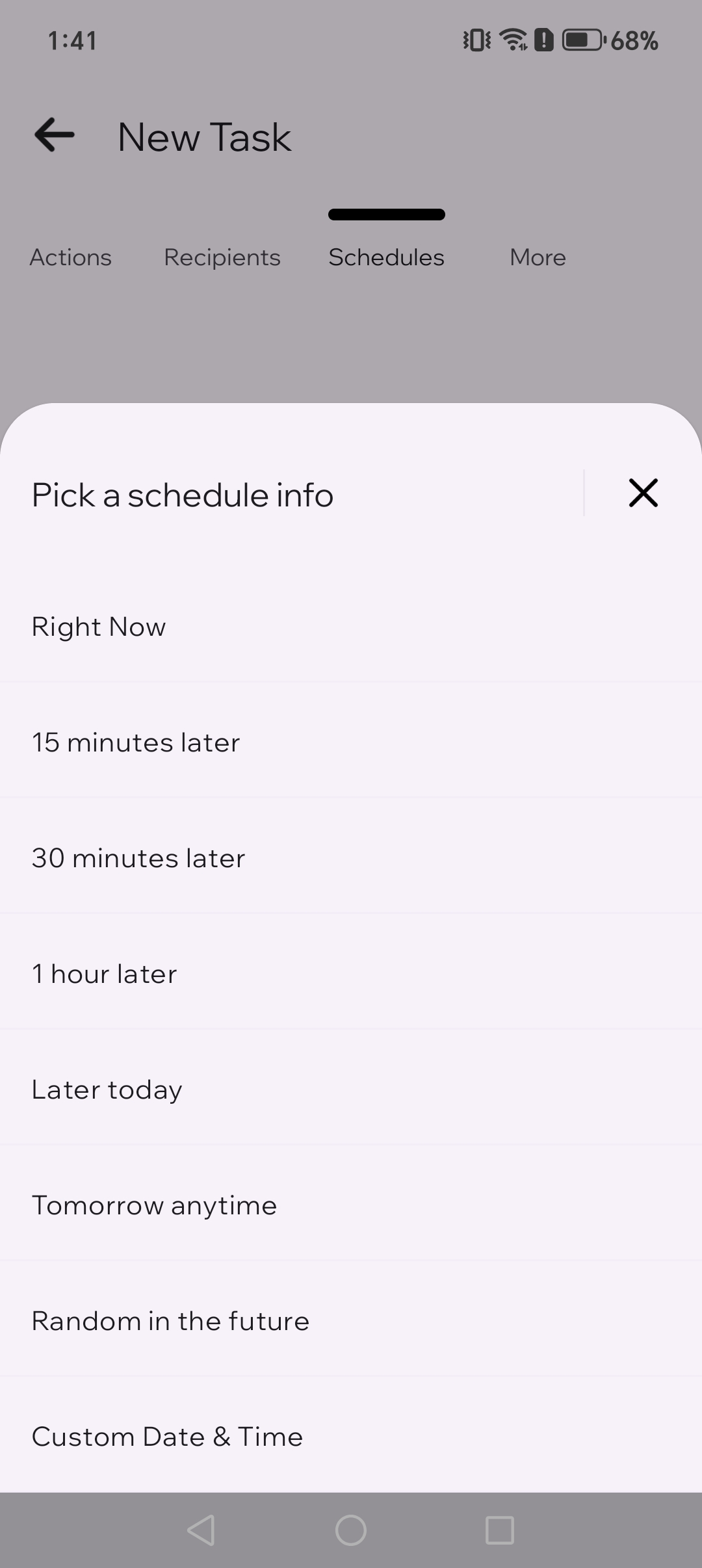
6.2. Set a time for a quick test.
7
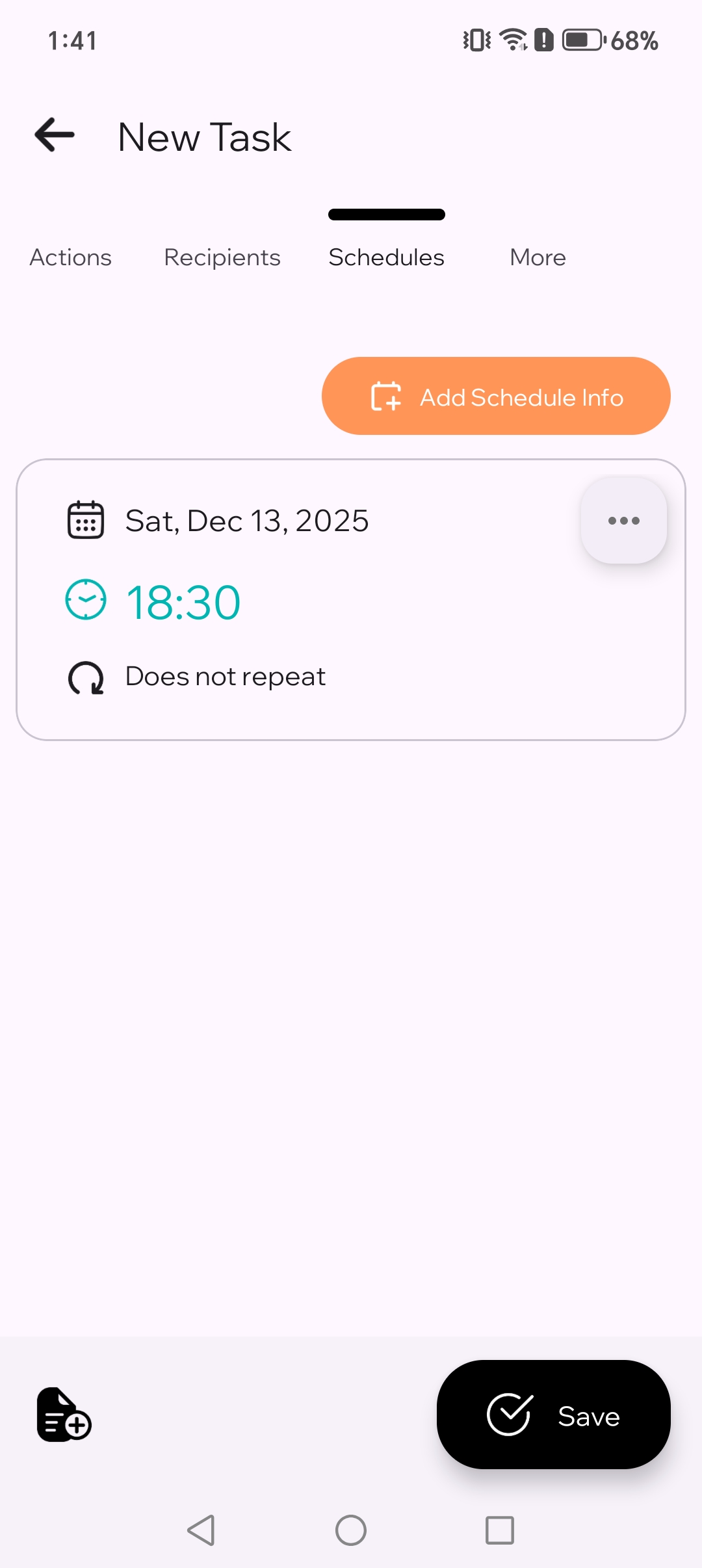
Save
Tap Save. TikTask will run the task at the time you chose.
If TikTask asks for setup help
TikTask runs on your phone. If Android blocks background work, open System Monitor first. It only shows the checks that matter for your device.
- Enable Accessibility Service when TikTask asks for it
- Disable battery optimization if Android is stopping background work
- Allow auto-start or background activity if your phone exposes it
- Keep notifications on so you can see warnings and test results
Test it once
- Schedule the task 2–3 minutes ahead
- Lock your phone and wait for the run time
- If it runs late, open System Monitor again and then use the Android setup checklist
🧭
Beginner tip
For the first task, use WhatsApp, one recipient, and a plain text message. It is the fastest way to confirm everything is working.
FAQ
What is the difference between action, channel, and recipient? +
The action is what TikTask will do, the channel is the app it will use, and the recipient is who will receive it.
What if my first task does not run? +
Open System Monitor first and complete the recommended checks for your phone. Most first-run issues come from Android background restrictions, not from the task itself.
Do I need Accessibility for TikTask to work? +
Yes. Accessibility lets TikTask complete scheduled actions reliably at the right time on your phone.
Can I use more than one channel in the same task? +
Yes. After the first simple test, you can add more than one channel to the same task when that workflow makes sense.