

💬 How to schedule WhatsApp messages on Android
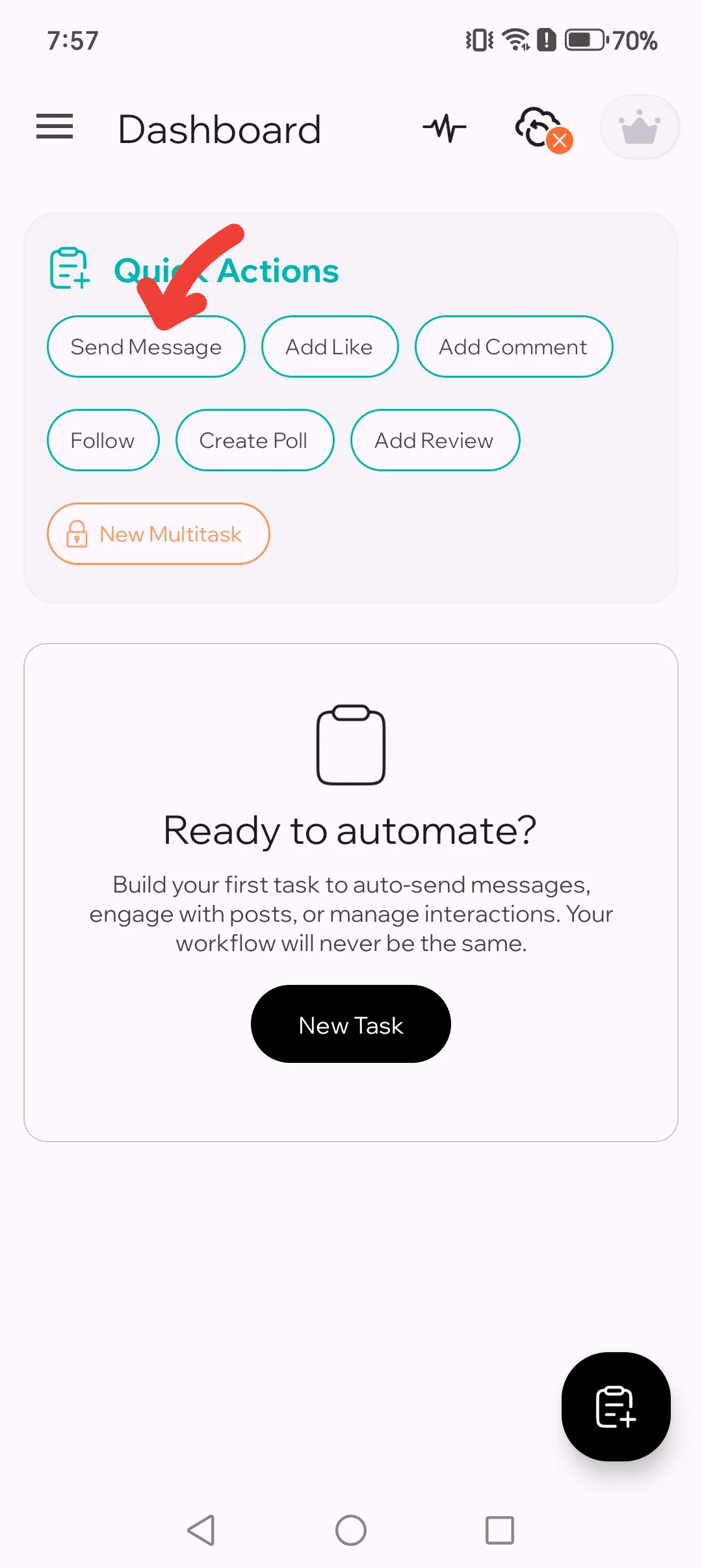
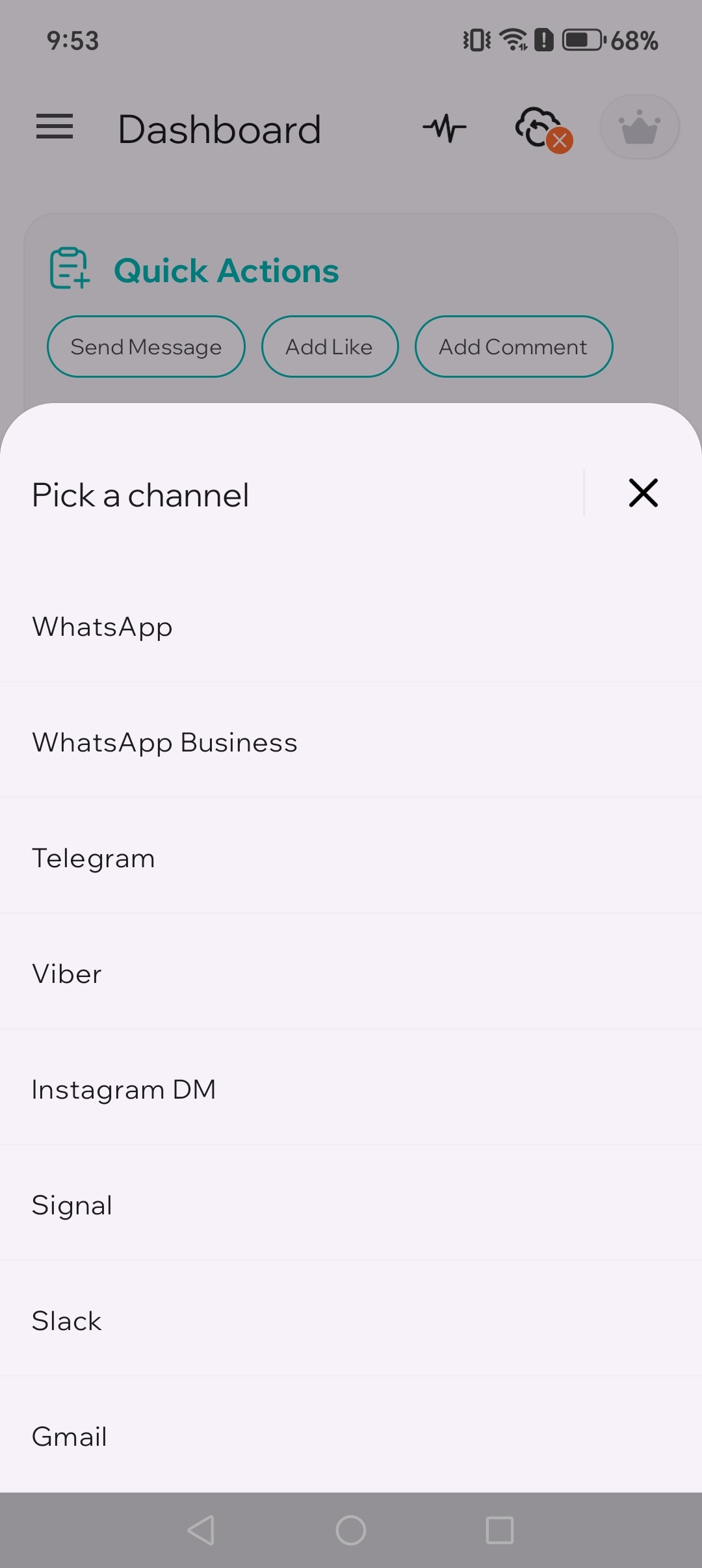
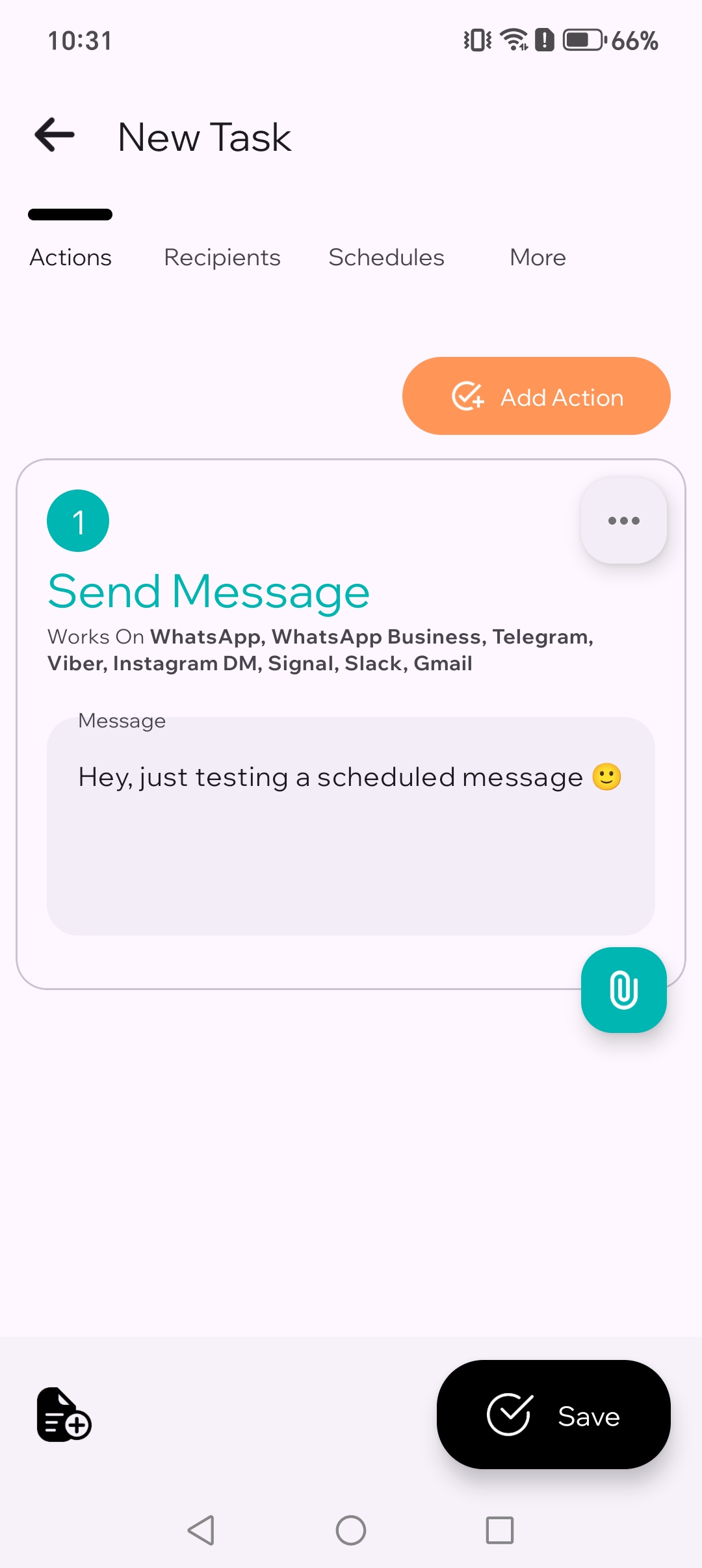
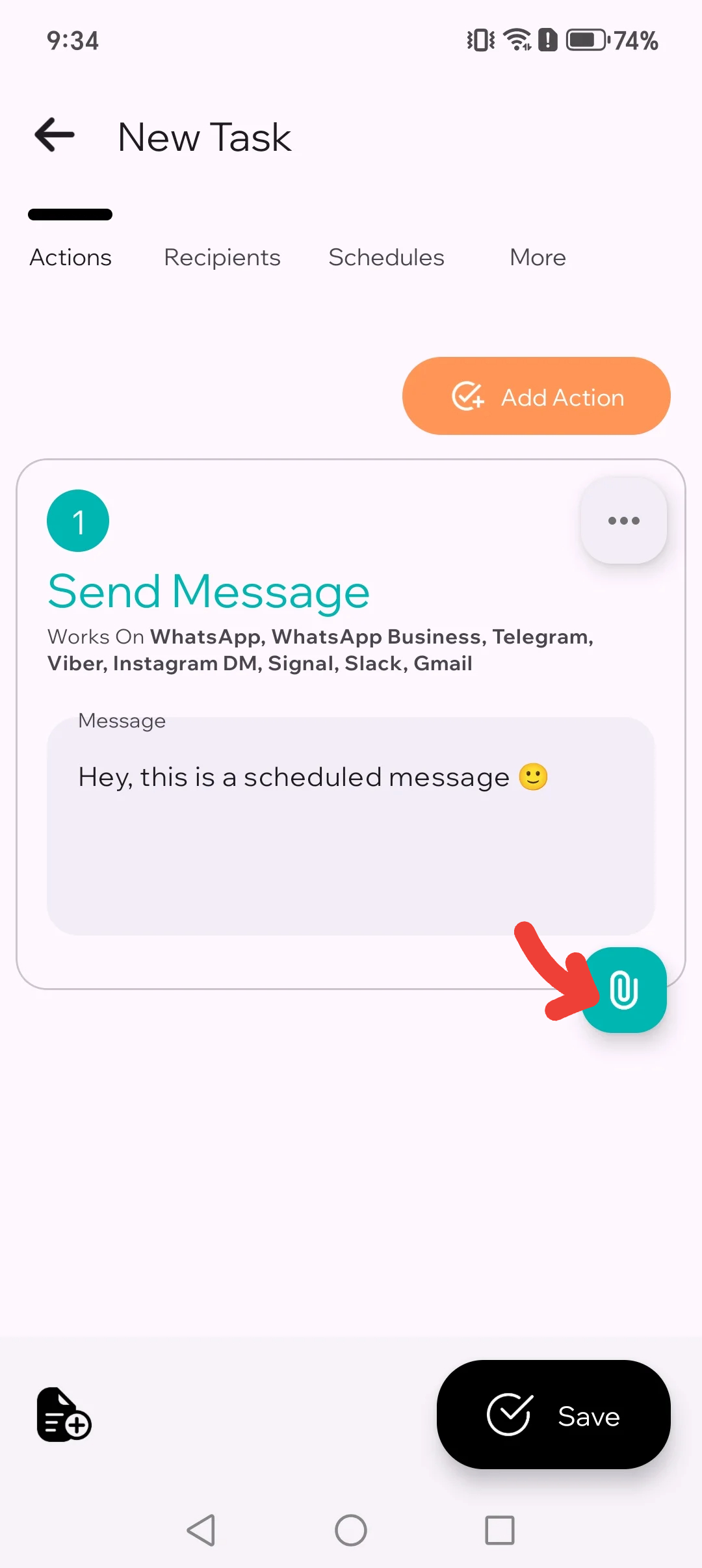
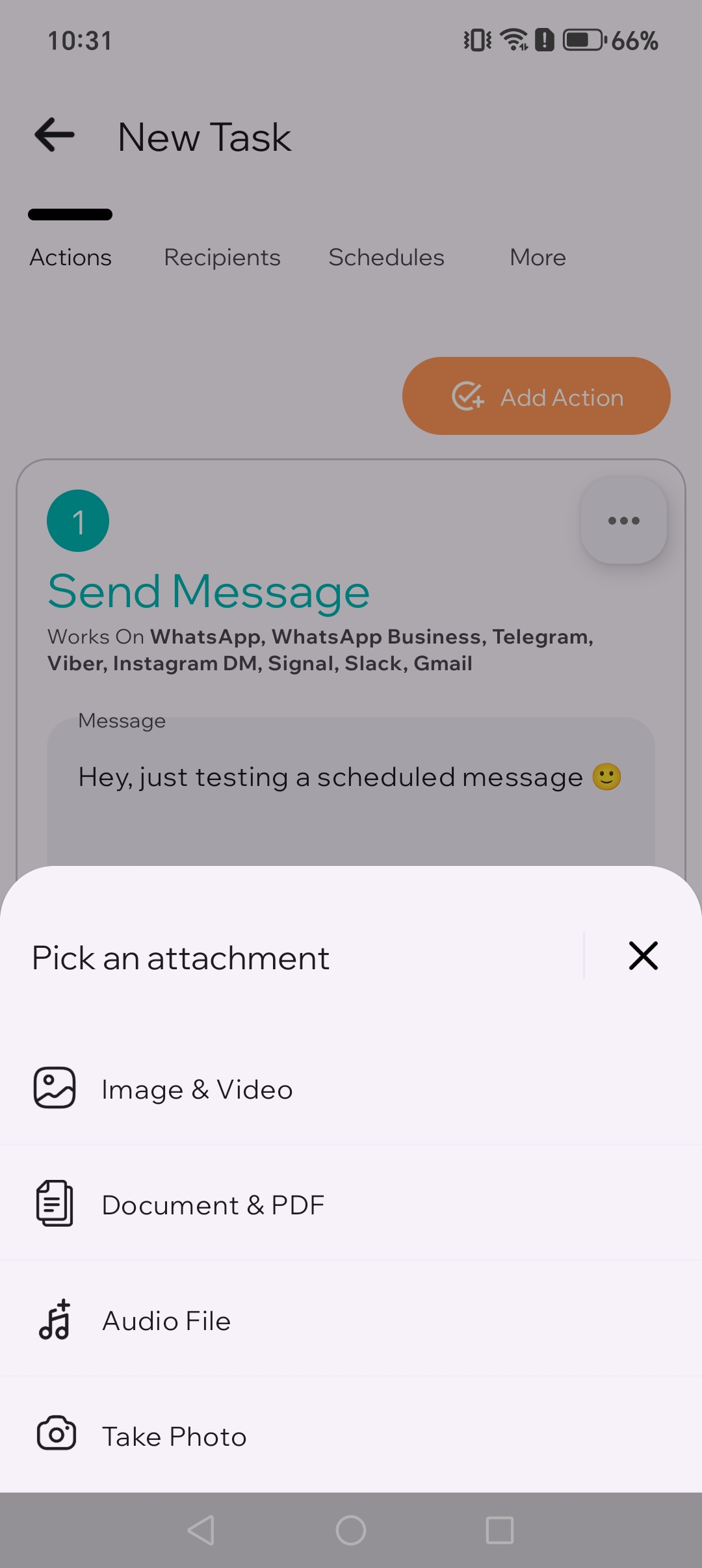
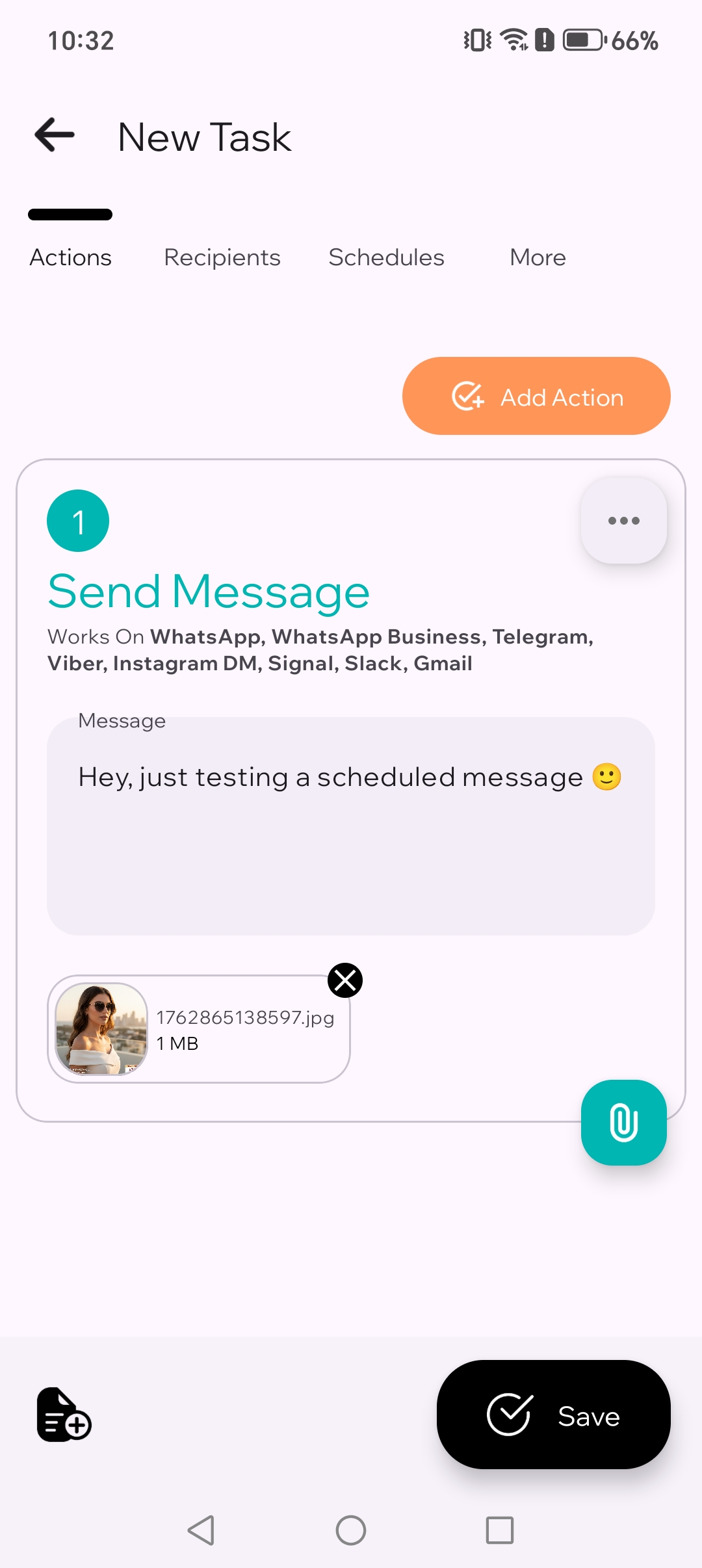
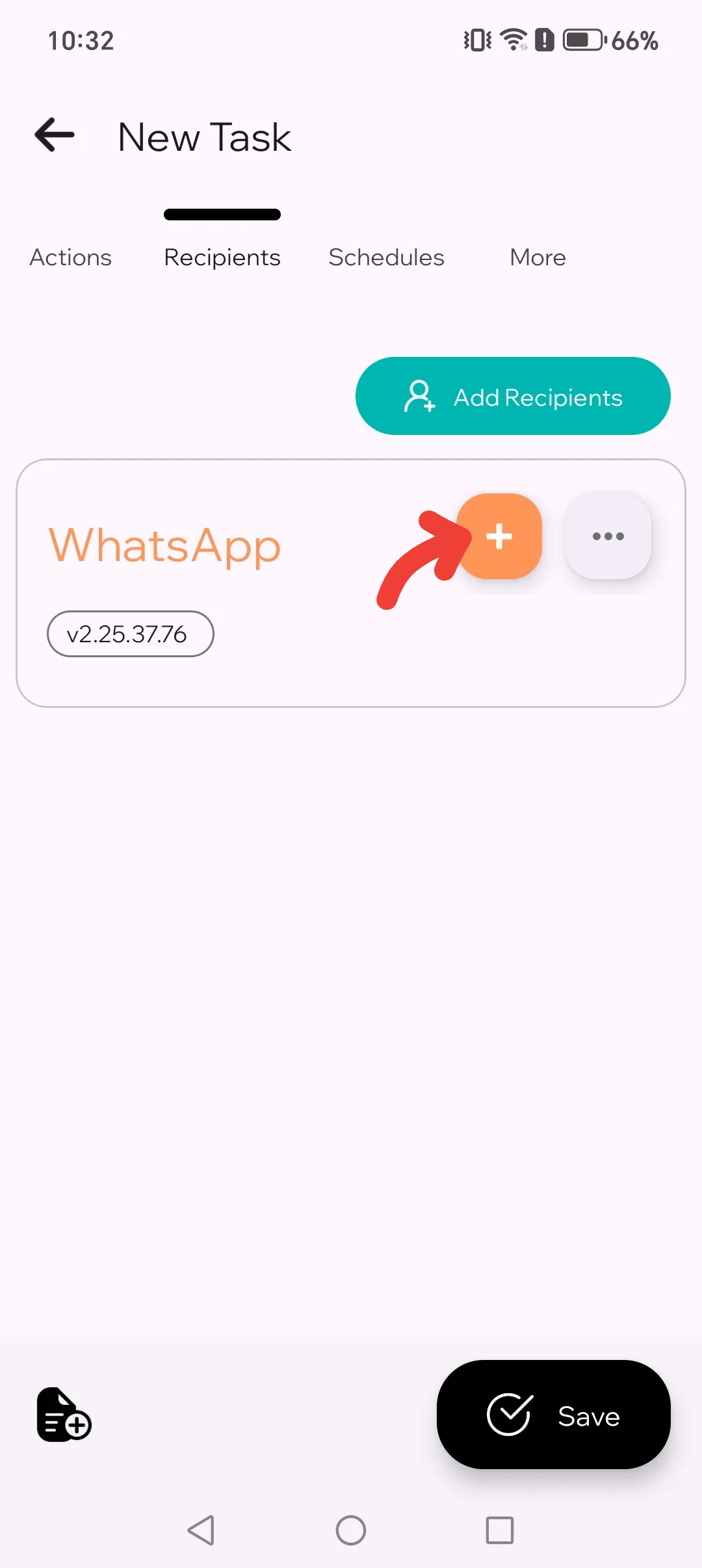
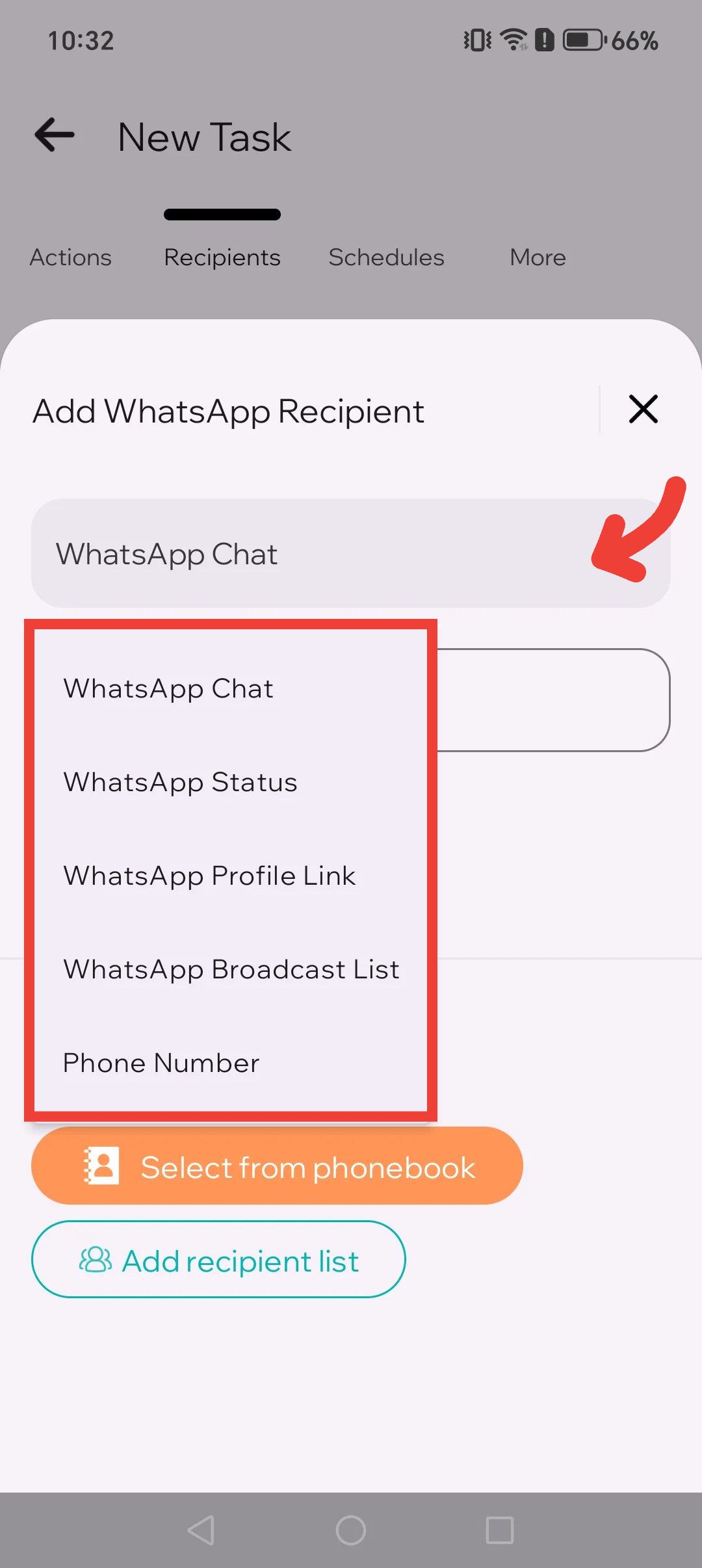
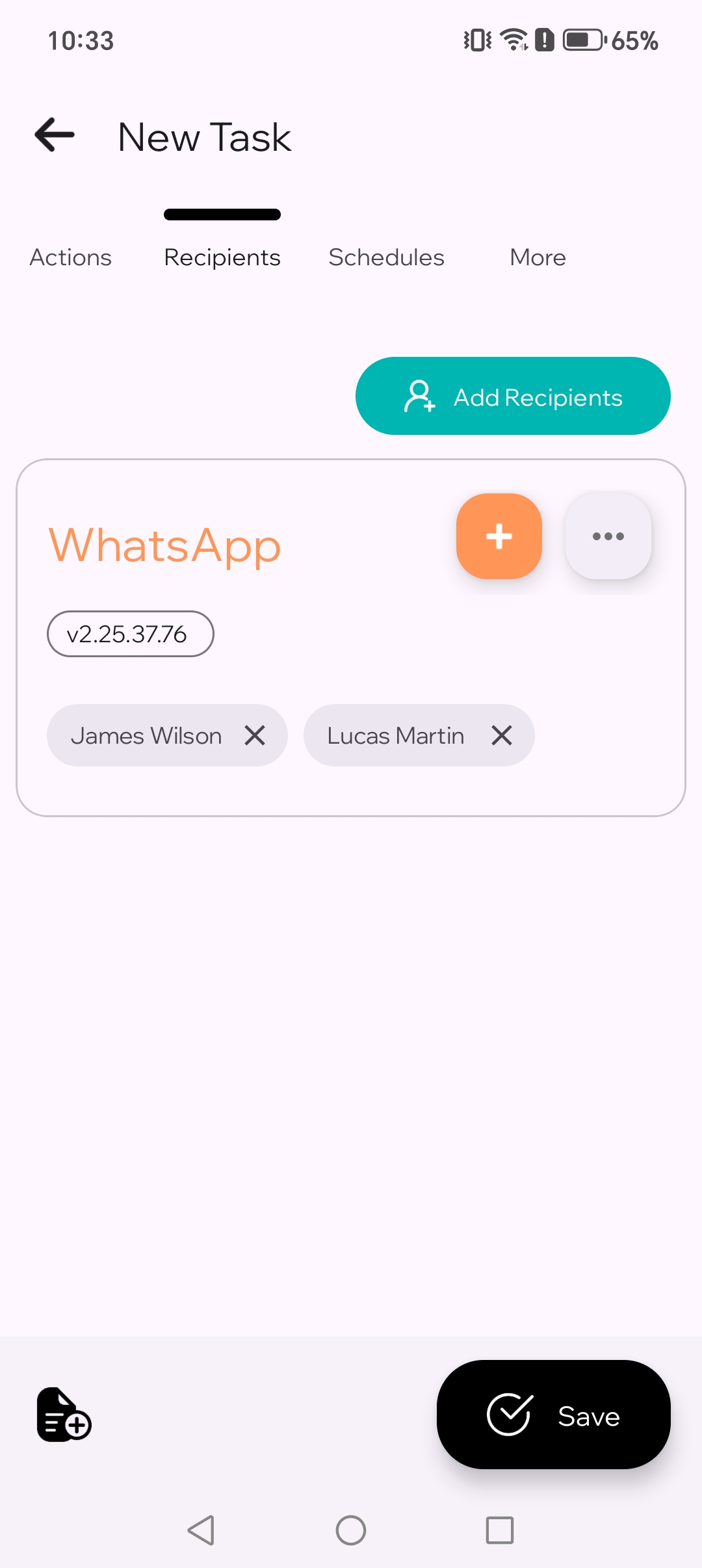
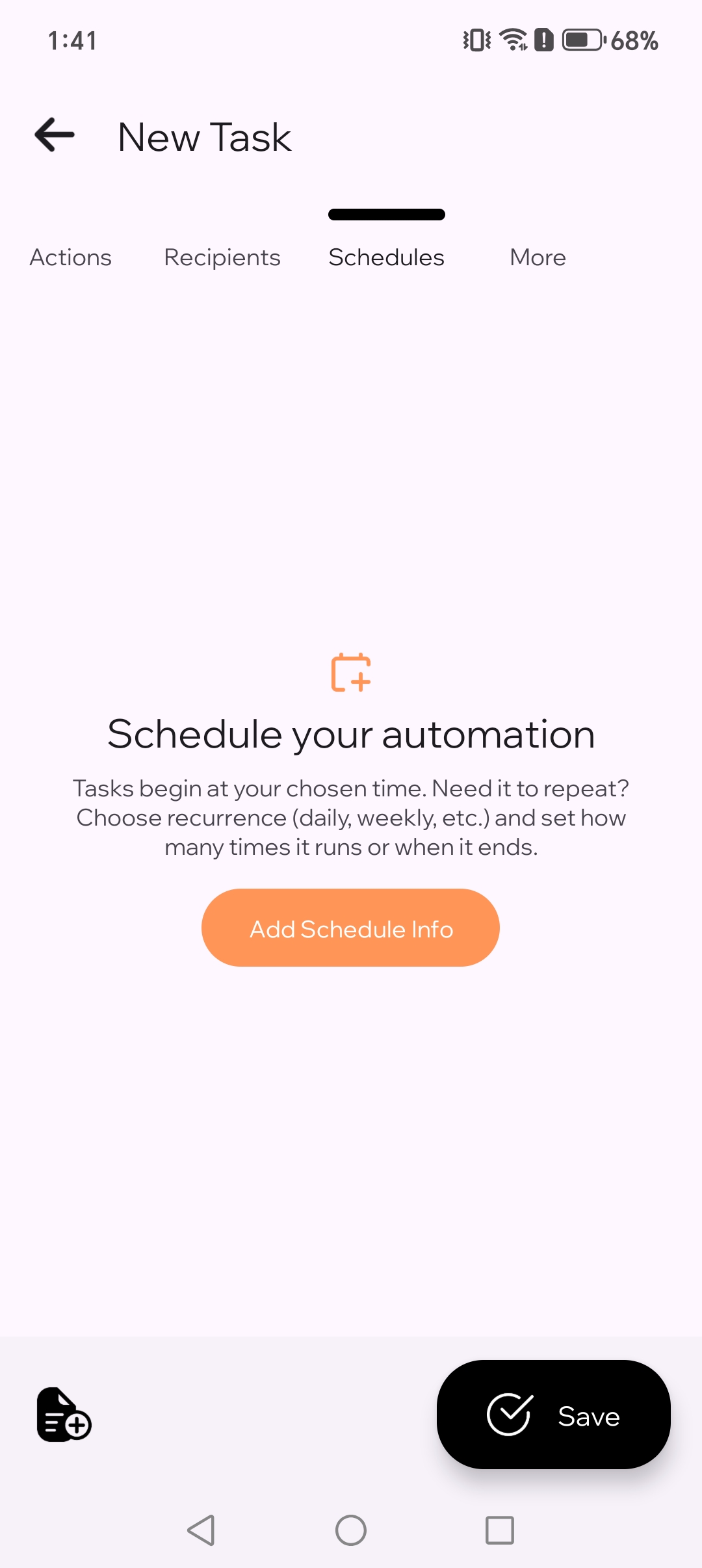
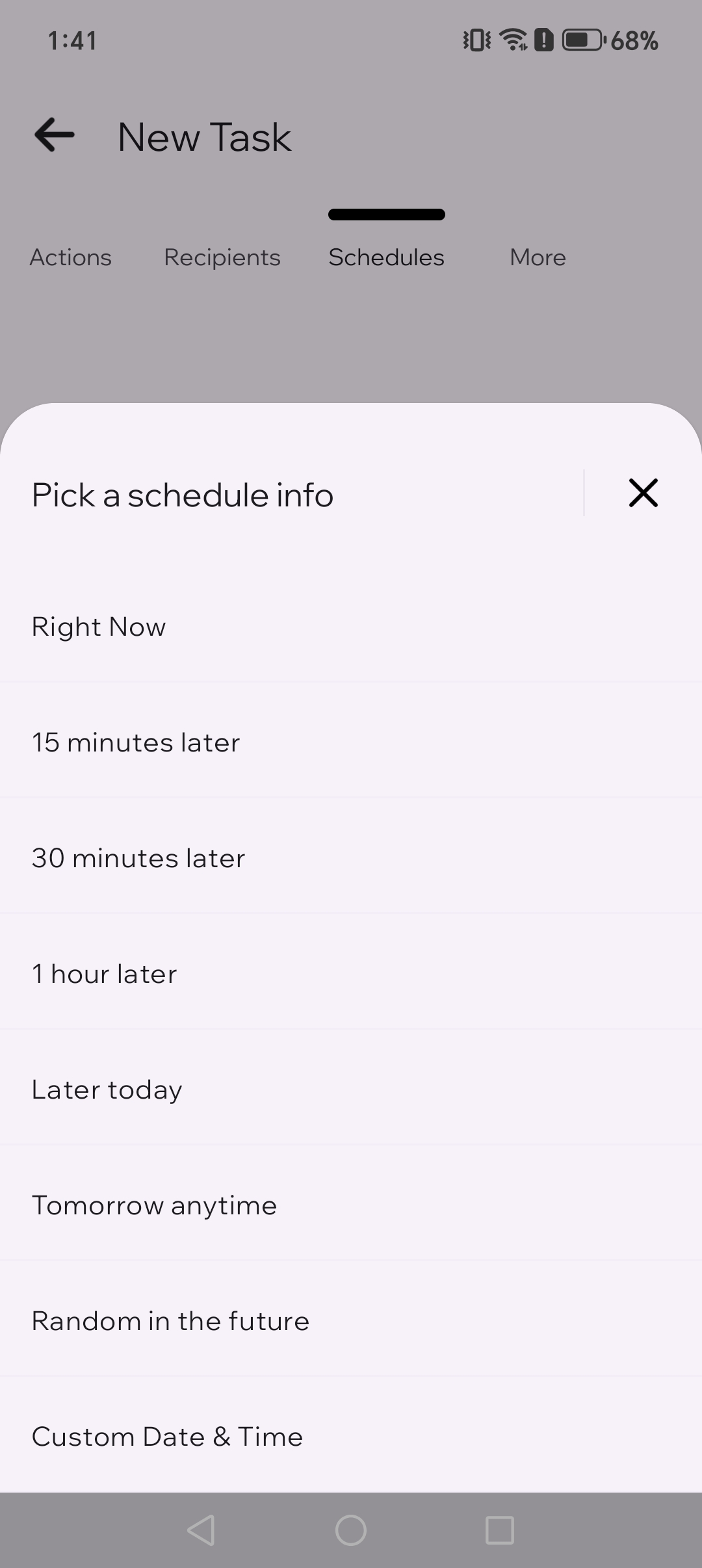
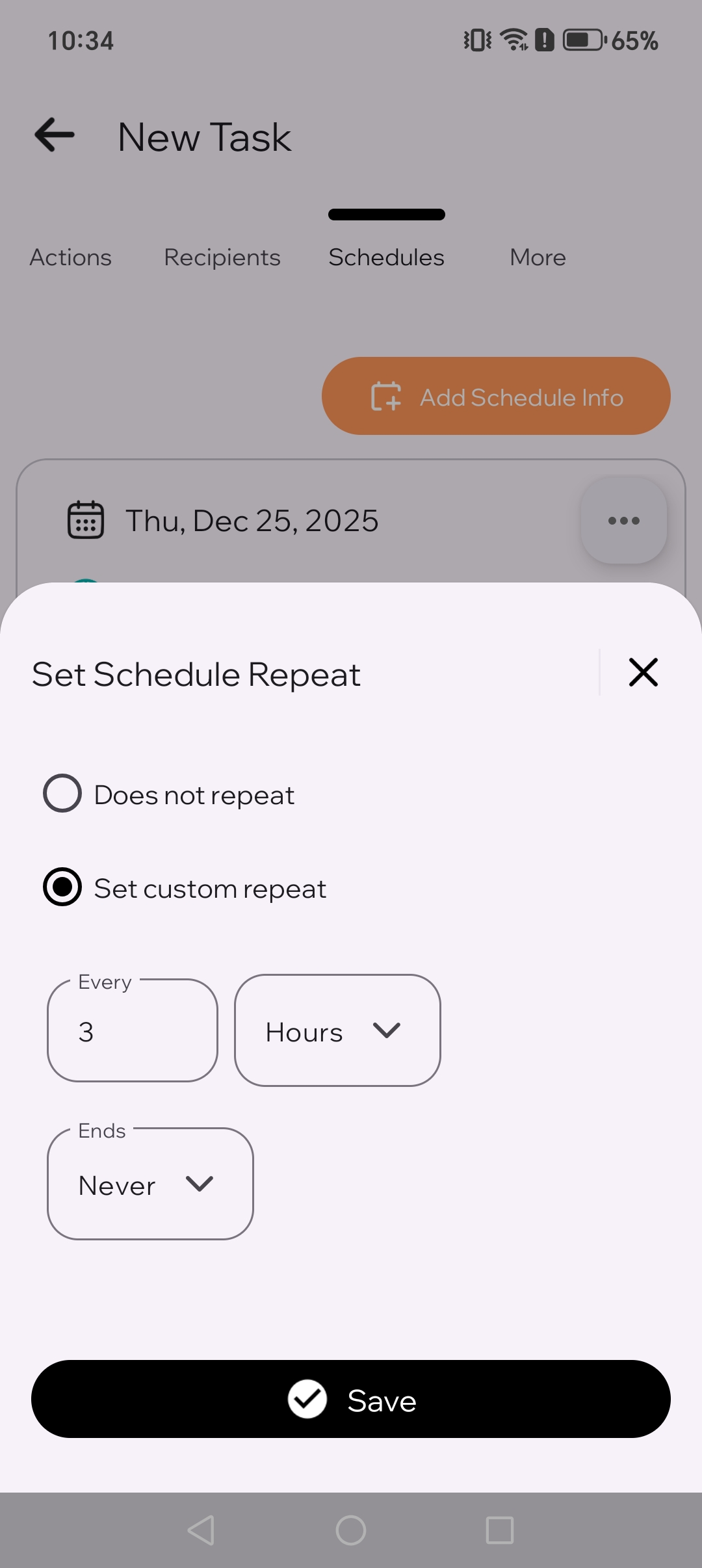
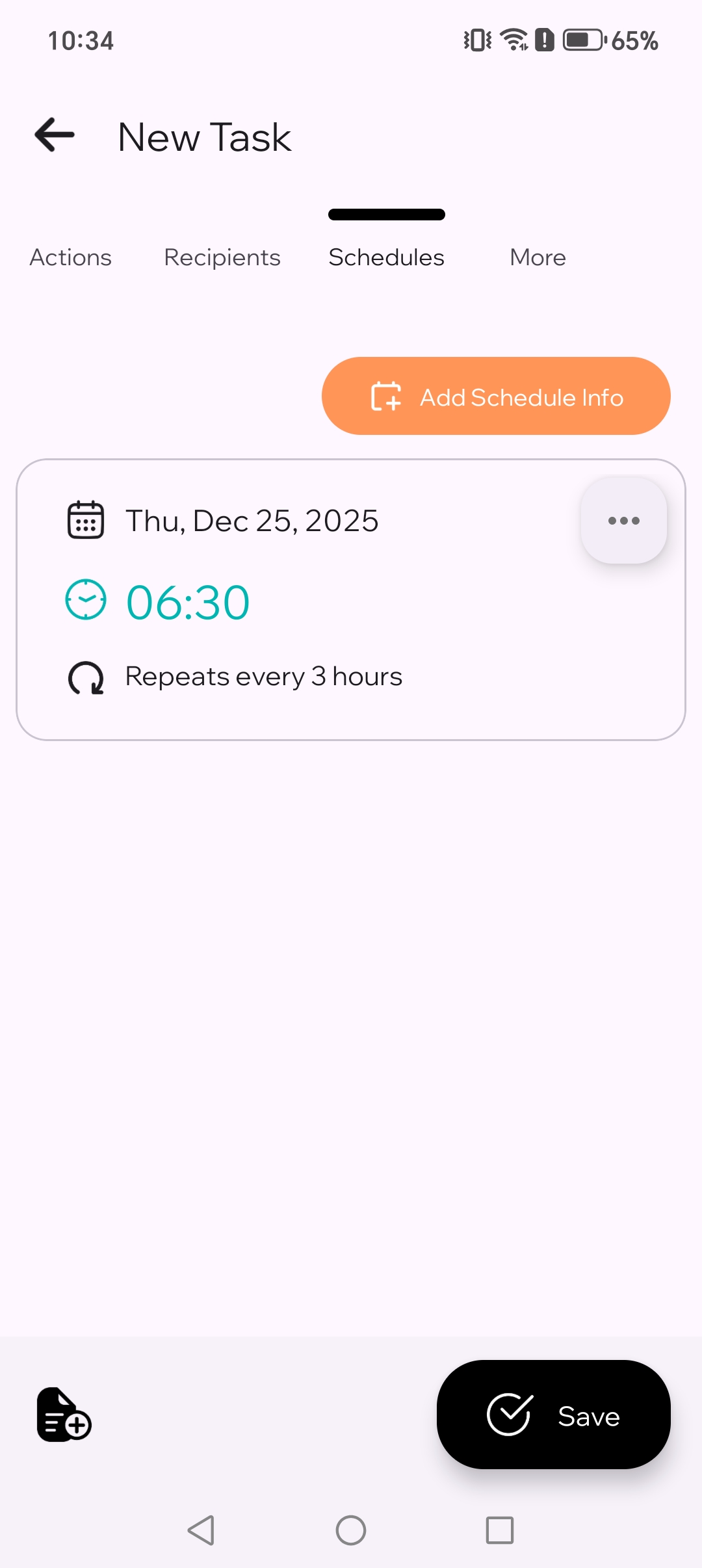
Choose Send Message, write your text, pick WhatsApp and the right recipients, set the time, and save.
You can schedule WhatsApp messages on Android with TikTask by choosing Send Message, writing your text, choosing WhatsApp, picking the right recipients, setting the time, and saving.
This guide is written for normal users, not technical readers. We will explain what to tap and what each step means.
Before you start
TikTask runs on your device, not on a server. When it is time to send, TikTask may briefly open WhatsApp to complete the action. That is normal.
If TikTask asks for setup help, open System Monitor first. Only the checks relevant to your phone will appear.
Step-by-step
If it does not send on time
In most cases, the schedule is fine and the phone is the problem. Start with System Monitor first. It only shows the checks that matter for your phone. Then check the items below if needed.
- Rerun System Monitor and complete the recommended checks first
- Confirm Accessibility Service is enabled
- Disable battery optimization or background restrictions for TikTask
- Check your phone-brand guide if you use Xiaomi, Samsung, OnePlus, OPPO, Tecno, Infinix, or similar devices
- Run another quick test a few minutes ahead
Helpful next steps
- Use Recipient Lists if you message the same people often
- Use the unsaved number guide if the number is not in your contacts
- Open the Android setup checklist if tasks run late more than once